Introduction & Use Case:
Every security team has a few ghosts in the machine 👻 — the forgotten servers quietly running business-critical software that fell off the vendor’s support list years ago ☠️.
These devices aren’t just “old,” they’re unpatchable — and that makes them prime real estate for attackers looking for a quick foothold.
The problem? Tracking down end-of-life (EoL) software across an enterprise is a nightmare. Sentinel doesn’t always have the right tables, Defender’s Threat & Vulnerability data only hangs around for 30 days, and exporting reports by hand every month is about as fun as diffing CSVs in Notepad.
So, in true DevSecOpsDad fashion, we’re going to automate it. 🧑💻
With one PowerShell script, we’ll connect to the Microsoft Graph API, run an Advanced Hunting query directly against Defender’s TVM data, and produce a clean, auditable CSV that tells you exactly which devices are running out-of-support software — no data loss, no manual clicks.

In this Post We Will Cover:
- ⚙️ Understanding Why Identifying End-of-Life Systems Matters (and What You Can Do About It)
- 📖 Review Practical Use Cases for End of Life Automation
- 👁️ Using Advanced Hunting to Find EoL Devices and Software
- 🔍 Interpreting the columns (at a glance)
- 👨💻 The normal “check EoL” workflow (what an analyst actually does)
- 💡 From KQL to Graph — Why We’re Hunting the Smart Way
- ⚡ Automating it!
- 🛠️ Quality checks & gotchas
- ✅ Why Graph + Advanced Hunting is the Way
- 🧠 Smart variations you might add later
- 🚀 Other useful automations you can add (same pattern)
- 🔄 Automating the Report FURTHER with an Entra ID Registered App
- 🩺 Troubleshooting
- 🏁 Wrapping It Up
- 📚 Bonus: Want to Go Deeper?
- 🔗 References (good to keep handy)
⚙️ Why Identifying End-of-Life Systems Matters (and What You Can Do About It)
But before we dive into the code, let’s talk about why this even matters. EoL systems aren’t just messy IT leftovers — they’re security time bombs ticking quietly in your asset inventory. 💣
In cybersecurity, “end-of-life” doesn’t just mean old — it means unprotected. When hardware or software reaches its end-of-support date, vendors stop delivering security patches, firmware updates, and compatibility fixes. Those forgotten assets quickly turn into easy footholds for attackers looking for unpatched vulnerabilities or outdated agents to exploit. 🧟♂️
From a defender’s standpoint, ignoring EoL assets creates a ripple effect across security, compliance, and operations:
-
Exposure: Legacy systems are prime entry points for ransomware, privilege escalation, and lateral movement.
-
Compliance Risk: Frameworks like NIST CSF, CIS v8, and ISO 27001 require active lifecycle management. Unsupported OS versions and firmware are frequent audit findings.
-
Operational Blind Spots: Unsupported software can break telemetry and patch automation, leaving you flying blind in key parts of your environment.
That’s where automation comes in. With a little PowerShell and Microsoft Graph, you can continuously surface EoL assets and feed them directly into your existing security and IT workflows.
📖 Practical Use Cases for EoL Automation
So what can we actually do with this visibility once we have it? Here are a few ways EoL data can move from “nice-to-know” to “mission-critical:”
-
Attack Surface Reduction – Automatically identify and quarantine devices running out-of-support software before adversaries find them.
-
Compliance Evidence – Generate on-demand audit reports proving lifecycle management and patch governance are in place.
-
Patch & Lifecycle Management – Feed EoL findings into Intune, CMDBs, or ServiceNow to trigger upgrades or decommission tasks.
-
Executive Metrics – Track “% of assets within support lifecycle” as a measurable cyber hygiene KPI.
-
Defender XDR Integration – Correlate EoL devices with incidents in Microsoft Sentinel to prioritize the riskiest exposures.
👁️ How this Advanced Hunting query finds EoL software
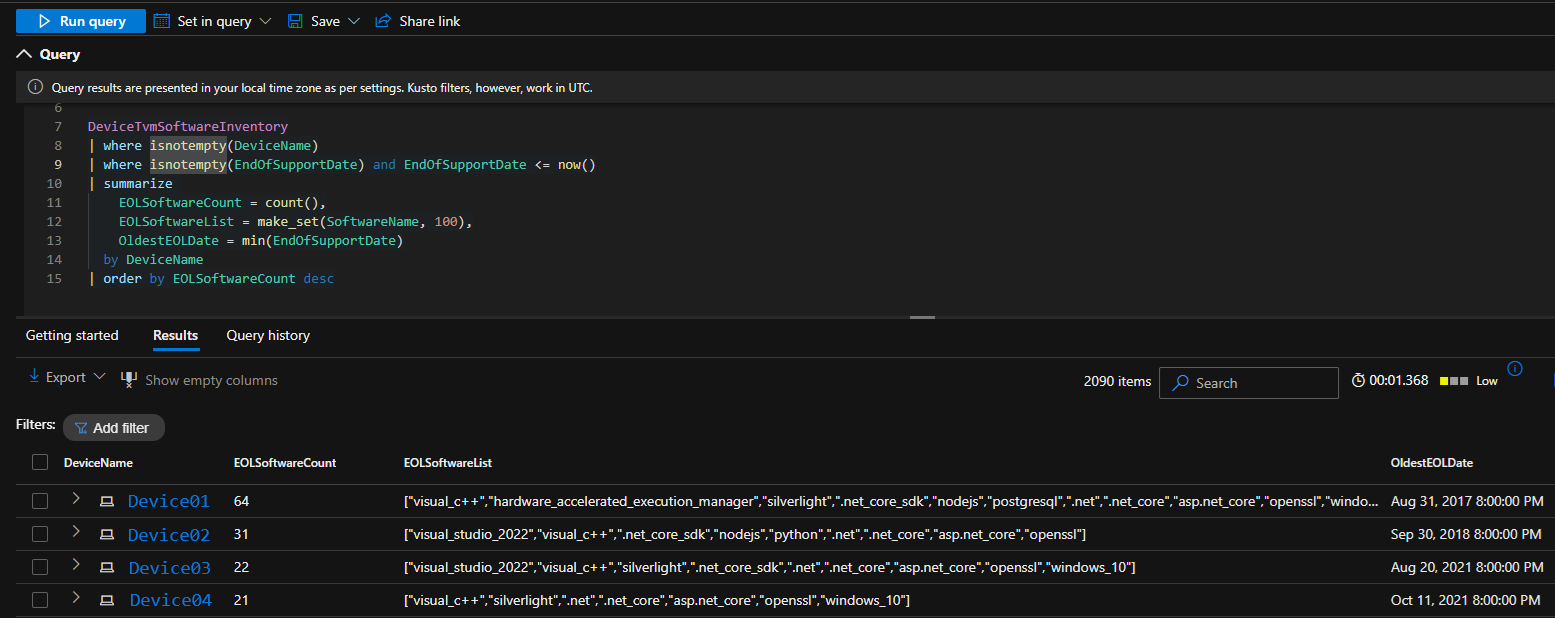
Now that we know what’s at stake — and what you can do with the data — let’s roll up our sleeves and look at how we actually find these aging assets inside Defender’s data. The key is the DeviceTvmSoftwareInventory table. Here’s the exact KQL that makes it all happen. Don’t worry — we’ll unpack it line by line. 👇
DeviceTvmSoftwareInventory
| where isnotempty(DeviceName)
| where isnotempty(EndOfSupportDate) and EndOfSupportDate <= now()
| summarize
    EOLSoftwareCount = count(),
    EOLSoftwareList = make_set(SoftwareName, 100),
    OldestEOLDate = min(EndOfSupportDate)
  by DeviceName
| order by EOLSoftwareCount desc
🕵️♂️ Line-by-line (what it’s doing)
-
1. Start with TVM software inventory
DeviceTvmSoftwareInventoryis Defender’s Threat & Vulnerability Management table that lists discovered software per device, with lifecycle metadata (including end-of-support where Microsoft/Vendor provides it). -
2. Keep only real devices
| where isnotempty(DeviceName)drops any odd/null rows. -
3. Filter to software already past EoL
| where isnotempty(EndOfSupportDate) and EndOfSupportDate <= now()- Ensures the vendor actually provided an end-of-support date.
- Keeps rows where that date is now or earlier (i.e., already out of support today).
-
4. Roll up by device
summarize ... by DeviceNamecollapses many rows (one per app) into one row per device, with:EOLSoftwareCount→ how many out-of-support titles are on that device.EOLSoftwareList→ up to 100 unique software names (handy for a one-glance review).OldestEOLDate→ the earliest EoL among those apps—useful to spot how long a device has been carrying legacy baggage.
-
5. Sort by worst offenders
order by EOLSoftwareCount descputs the noisiest/riskier devices at the top.
🔍 How to interpret the columns (at a glance)
-
DeviceName → Who needs attention.
-
EOLSoftwareCount → Volume of unsupported titles (a proxy for risk + cleanup effort).
-
EOLSoftwareList → What exactly is unsupported (helps owners take action).
-
OldestEOLDate → How long you’ve been out of compliance (prioritize older first).
👨💻 The normal “check EoL” workflow (what an analyst actually does)
-
1. Run the query (Hunting page or API)
- In the Defender portal (Advanced Hunting) for a quick look, or via Microsoft Graph/PowerShell for repeatable reporting.
-
2. Scan the top offenders
- Devices with high
EOLSoftwareCountget triaged first. - Skim
EOLSoftwareListto see if it’s business-critical software (upgrade path needed) vs. dead utilities (safe to remove).
- Devices with high
-
3. Look at “how stale”
OldestEOLDatetells you if you’re weeks vs. years overdue. A very old date = higher risk/visibility with auditors.
-
4. Decide the path: upgrade, replace, or remove
- Replace/upgrade: if it’s a core app with a supported version.
- Remove: if deprecated/unneeded.
- Isolate/quarantine: if the device can’t be fixed quickly and is exposed.
-
5. Kick off remediation
- Create tickets (ServiceNow/Jira), Intune assignments, or Planner tasks with due dates based on EoL age/severity.
- If you automate with Graph, you can do this in the same PowerShell run that produced the CSV.
-
6. Report & trend
-
Export to CSV for your weekly report. Track % of devices within support as a KPI and show trend lines improving over time.
-
That’s the manual way — click, query, export, repeat. ☕ 💡 But we can do better. Let’s take that same hunting logic and wrap it in a PowerShell script that runs automatically through the Microsoft Graph API, producing a fresh report whenever you need it.
💡 From KQL to Graph — Why We’re Hunting the Smart Way
Now, if you’re thinking, “Wait, couldn’t I just pull this from Sentinel with a regular KQL query?” — great question. You could try… but here’s the catch.
The DeviceTvmSoftwareInventory table — the one that holds all that rich lifecycle and end-of-support data — doesn’t usually live in Sentinel unless explicitly ingested. It’s part of Defender’s Threat & Vulnerability Management (TVM) dataset, which is stored directly in the Defender XDR portal and retained there for around 30 days for free by default, so it typically stays there.
That means if you open the Sentinel “Logs” blade in the Azure portal and go hunting for that table, you’ll likely come up empty. It’s not that you did anything wrong — it’s just that Defender never forwards TVM tables into the Log Analytics workspace unless you’ve specifically integrated it (and paid the ingest cost).
So if your plan was to build a shiny Power BI dashboard off exported KQL → M Queries → OData connectors… this is where things get messy… You can’t query what you haven’t logged to a table. 😬
This becomes a real wrench in the works for analysts and compliance teams who want to trend EoL exposure over time. You can’t easily visualize that data monthly if Sentinel never sees it — and exporting manually from Defender’s portal every few weeks is a one-way ticket to carpal tunnel and caffeine burnout 🖐️💀 — let’s automate it instead 💡.
That’s why we’re going straight to the source; By calling Microsoft Graph’s Advanced Hunting endpoint, we can reach directly into the Defender dataset — the same data Sentinel would ingest — and pull exactly what we need, on demand. No workspace ingestion, no manual exports, no cost surprises. Just clean JSON results, ready to automate.
And with a bit of PowerShell magic✨, we’ll transform that output into a ready-to-use CSV that you can feed into Power BI, share with your compliance team, or even schedule as a weekly report.
Let’s dig into how it works. 👇
⚡Automation Script
So far, we’ve looked at how you’d manually check for end-of-life software — running KQL in the portal, eyeballing top offenders, and kicking off tickets one by one. That’s fine for a small lab or proof-of-concept, but in production, you’ll want a repeatable, scriptable workflow that runs quietly in the background while you sip your coffee ☕.
That’s where PowerShell and Microsoft Graph come in. With just a few dozen lines, we can connect to Graph’s Advanced Hunting endpoint, run the same query automatically, and export the results to a polished CSV — no clicking through dashboards, no stale data.
The script below does exactly that:
- Authenticates to Microsoft Graph (handling both user and app-only auth)
- Executes the DeviceTvmSoftwareInventory hunting query
- Transforms the results into clean, readable data
- Exports everything to CSV for reporting, trending, or ticket automation
Let’s pop the hood and walk through it. 🧑💻👇
#Requires -Modules Microsoft.Graph.Authentication

<#
.SYNOPSIS
  Summarizes devices with End-of-Life (EoL / End-of-Support) software counts per device
  by running a Defender hunting query via Microsoft Graph and exporting results to CSV.

.DESCRIPTION
  - Ensures you're connected to Microsoft Graph with ThreatHunting.Read.All (or App-only).
  - Executes a KQL query against /security/runHuntingQuery.
  - Produces a CSV with DeviceName, EOLSoftwareCount, OldestEOLDate, and EOLSoftwareList.

.PARAMETER OutputPath
  Full path to the CSV output. The folder is created if it doesn't exist.

.PARAMETER TenantId
  Optional. If provided, the script will attempt to connect to Graph for that tenant.

.PARAMETER SkipAutoConnect
  Switch. If set, the script will NOT attempt to connect automatically and will fail if no context exists.

.EXAMPLE
1. Set-ExecutionPolicy -Scope Process -ExecutionPolicy Bypass -Force
2. Install-Module Microsoft.Graph -Scope CurrentUser -AllowClobber
3. Connect-MgGraph -Scopes 'ThreatHunting.Read.All'
4. .\EOLAutomated.ps1 -OutputPath 'C:\Temp\EndOfSupport_DeviceSummary.csv'
#>

[CmdletBinding()]
param(
  [string]$OutputPath = ".\EndOfSupport_DeviceSummary_$(Get-Date -Format 'yyyy-MM-dd_HHmmss').csv",
  [string]$TenantId,
  [switch]$SkipAutoConnect
)

function Ensure-GraphConnection {
  param(
    [Parameter(Mandatory)][string]$RequiredScope,
    [string]$TenantId
  )

  try {
    $ctx = Get-MgContext -ErrorAction SilentlyContinue
  } catch {
    $ctx = $null
  }

  if (-not $ctx) {
    if ($SkipAutoConnect) {
      throw "Not connected to Microsoft Graph. Re-run after: Connect-MgGraph -Scopes '$RequiredScope'"
    }

    Write-Host "No Graph context detected. Attempting to connect..." -ForegroundColor Cyan
    if ($TenantId) {
      Connect-MgGraph -Scopes $RequiredScope -TenantId $TenantId
    } else {
      Connect-MgGraph -Scopes $RequiredScope
    }

    $ctx = Get-MgContext
    if (-not $ctx) {
      throw "Failed to establish a Microsoft Graph connection."
    }
  }

  # App-only has no Scopes property
  if ($ctx.AuthType -eq 'AppOnly') {
    Write-Host "Connected with App-Only auth. Ensure the application permission 'ThreatHunting.Read.All' has admin consent." -ForegroundColor Yellow
    return
  }

  # Verify requested scope present (best-effort)
  $scopes = @()
  if ($ctx.Scopes) { $scopes = $ctx.Scopes }
  if ($scopes.Count -gt 0) {
    $joined = ($scopes -join ' ')
    if ($joined -notmatch [regex]::Escape($RequiredScope)) {
      throw "Connected, but missing required scope '$RequiredScope'. Current scopes: $joined"
    }
  }
}

function Convert-ToStringList {
  <#
    Converts the EOLSoftwareList field (could be JSON array string, PS array, or string)
    into a human-friendly '; '-joined string.
  #>
  param([object]$Value)

  if ($null -eq $Value) { return '' }

  try {
    $typeName = $Value.GetType().Name
  } catch {
    $typeName = 'Unknown'
  }

  try {
    switch ($typeName) {
      'String' {
        $trim = $Value.Trim()
        if ($trim.StartsWith('[') -and $trim.EndsWith(']')) {
          $arr = $trim | ConvertFrom-Json -ErrorAction Stop
          if ($arr -is [System.Array]) { return ($arr -join '; ') }
        }
        return $trim
      }
      'Object[]' { return ($Value -join '; ') }
      default    { return [string]$Value }
    }
  } catch {
    return [string]$Value
  }
}

# ------------------------------
# Main
# ------------------------------
$ErrorActionPreference = 'Stop'

# 1) Ensure Graph connection & permissions
$requiredScope = 'ThreatHunting.Read.All'
Ensure-GraphConnection -RequiredScope $requiredScope -TenantId $TenantId

# 2) Define the hunting query
$kql = @"
DeviceTvmSoftwareInventory
| where isnotempty(DeviceName)
| where isnotempty(EndOfSupportDate) and EndOfSupportDate <= now()
| summarize
    EOLSoftwareCount = count(),
    EOLSoftwareList = make_set(SoftwareName, 100),
    OldestEOLDate = min(EndOfSupportDate)
  by DeviceName
| order by EOLSoftwareCount desc
"@

# 3) Prepare request
$uri  = "https://graph.microsoft.com/v1.0/security/runHuntingQuery"
$body = @{ Query = $kql } | ConvertTo-Json -Depth 5

Write-Host "Executing hunting query against Defender via Microsoft Graph..." -ForegroundColor Cyan

try {
  $response = Invoke-MgGraphRequest -Method POST -Uri $uri -Body $body -ContentType "application/json"

  # 4) Validate results
  if (-not $response -or -not $response.results) {
    Write-Host "✓ No devices with EOL/EOS software found (no results returned)." -ForegroundColor Green
    return
  }

  $raw = $response.results
  if (-not $raw.Count) {
    Write-Host "✓ No devices with EOL/EOS software found." -ForegroundColor Green
    return
  }

  # 5) Transform rows (pre-calc complex values; no inline try/catch in hashtable)
  $results = foreach ($row in $raw) {
    # OldestEOLDate may come as string; make a best-effort cast
    $oldest = $null
    try {
      $oldest = [datetime]$row.OldestEOLDate
    } catch {
      $oldest = $row.OldestEOLDate
    }

    $list = Convert-ToStringList -Value $row.EOLSoftwareList

    [PSCustomObject]@{
      DeviceName       = $row.DeviceName
      EOLSoftwareCount = [int]$row.EOLSoftwareCount
      OldestEOLDate    = $oldest
      EOLSoftwareList  = $list
    }
  }

  # 6) Ensure destination folder exists
  $dir = Split-Path -Path $OutputPath -Parent
  if (-not [string]::IsNullOrWhiteSpace($dir) -and -not (Test-Path -LiteralPath $dir)) {
    Write-Host "Creating folder: $dir" -ForegroundColor Cyan
    New-Item -ItemType Directory -Path $dir -Force | Out-Null
  }

  # 7) Export to CSV (compatible with all PowerShell versions)
  $results |
    Sort-Object -Property EOLSoftwareCount -Descending |
    Export-Csv -NoTypeInformation -Encoding UTF8 -Path $OutputPath

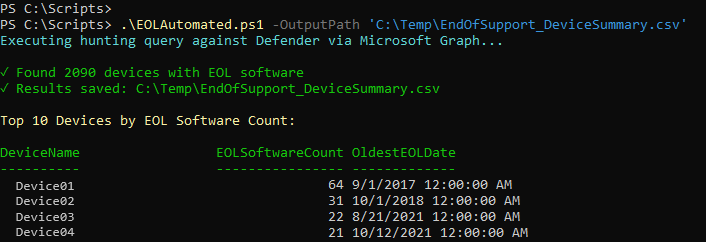
  Write-Host "`n✓ Found $($results.Count) devices with EOL software" -ForegroundColor Green
  Write-Host "✓ Results saved: $OutputPath" -ForegroundColor Green

  # 8) Console summary: Top 10 offenders
  Write-Host "`nTop 10 Devices by EOL Software Count:" -ForegroundColor Yellow
  $results |
    Sort-Object -Property EOLSoftwareCount -Descending |
    Select-Object -First 10 DeviceName, EOLSoftwareCount, OldestEOLDate |
    Format-Table -AutoSize

} catch {
  Write-Error "Query failed: $($_.Exception.Message)"
  if ($_.Exception.Response -and $_.Exception.Response.Content) {
    Write-Host "Response content:" -ForegroundColor DarkYellow
    Write-Host $_.Exception.Response.Content
  }
  throw
}
👉 Download the automation script from my GitHub
🕵️♂️ How the script works (step-by-step)
-
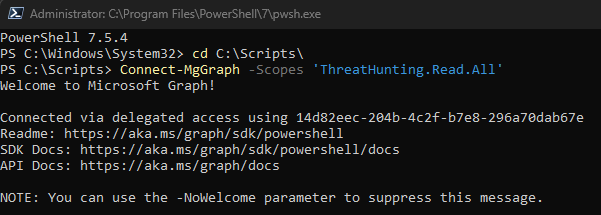
1. Authenticate to Microsoft Graph (PowerShell Graph SDK)
- The script imports the Graph module (e.g.,
Microsoft.Graph.Authentication) and callsConnect-MgGraphwith the least-privilege scope that can run Advanced Hunting (e.g.,ThreatHunting.Read.All). This establishes a token your session will use for subsequent Graph calls. The Advanced Hunting Graph method we’re ultimately hitting isPOST /security/runHuntingQuery.
- The script imports the Graph module (e.g.,
-
2. Build the Advanced Hunting (KQL) query
-
The query targets the Threat & Vulnerability Management software inventory table:
DeviceTvmSoftwareInventory. That table includes End-of-Support columns such asEndOfSupportStatusandEndOfSupportDate, which is what lets us produce an “EoL report.”DeviceTvmSoftwareInventory | where isnotempty(EndOfSupportStatus) | project DeviceName, SoftwareVendor, SoftwareName, Version, EndOfSupportStatus, EndOfSupportDate | order by EndOfSupportDate ascMicrosoft’s schema docs explicitly call out the presence of end-of-support info in this table.
-
-
3. Call the Graph Security “runHuntingQuery” API
-
With our access token in place, the script posts the KQL to
/security/runHuntingQuery(via the SDK cmdlet or a rawInvoke-MgGraphRequest). The API returns a result object that includesschemaandresults(rows) for our query.
-
-
4. Parse the results into PowerShell objects
-
The JSON payload’s
resultsarray is turned into a collection of PSCustomObjects. Each property corresponds to a projected KQL column (e.g.,DeviceName,SoftwareName,EndOfSupportDate, etc.).
-
-
5. Create the output folder (if needed)
- The script checks if your chosen output directory (e.g.,
C:\Temp) exists and creates it if not, so the export won’t fail when saving the CSV.
- The script checks if your chosen output directory (e.g.,
-
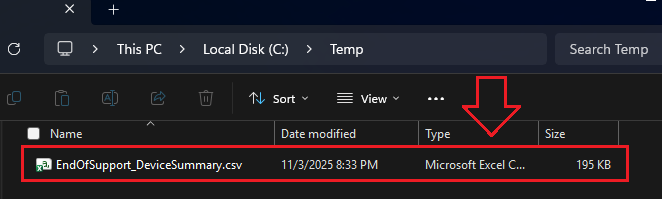
6. Export the hunting results to CSV
- Finally it writes the objects to disk with
Export-Csv.
- Finally it writes the objects to disk with
🔌 The PowerShell piece: what $kql = @" ... "@ means
You’re using a double-quoted here-string:
$kql = @"
DeviceTvmSoftwareInventory
| where ...
"@
Key facts:
- Here-strings let you paste multi-line text verbatim without escaping quotes or backticks. Great for KQL, JSON, and HTML.
-
Double-quoted (
@"..."@) means PowerShell variable expansion is enabled inside the block. For example, if you write$Todayin there, it will expand.- If you don’t want expansion, use a single-quoted here-string:
@' ... '@.
- If you don’t want expansion, use a single-quoted here-string:
- The closing
@"or@'must be at the start of the line (no indentation or trailing characters). - The content is stored as a single string—including line breaks—perfect for sending to Graph’s
runHuntingQueryendpoint or the Graph SDK cmdlets.
Example of parameterizing the window from PowerShell:
$days = 30
$kql = @"
DeviceTvmSoftwareInventory
| where isnotempty(DeviceName)
| where isnotempty(EndOfSupportDate) and EndOfSupportDate <= now($days d)
| summarize EOLSoftwareCount=count(), EOLSoftwareList=make_set(SoftwareName, 100), OldestEOLDate=min(EndOfSupportDate) by DeviceName
| order by EOLSoftwareCount desc
"@
(Because it’s double-quoted, $days expands right into the KQL.)
🛠️ Quality checks & gotchas
-
Inventory coverage: Devices missing TVM/Defender inventory won’t be represented—cross-check onboarding.
-
Set size:
make_set(SoftwareName, 100)caps the list at 100 names; raise if you truly need more (CSV readability may suffer). -
Time zone:
now()is UTC innormalized to Adjusted Hours (AH). That’s fine for lifecycle checks, but note when describing reports to stakeholders. -
Names vs. versions: If you need precision, also project
Version(e.g., different Java builds). -
Old device names: If you recycle hostnames, consider joining on a stable key like
DeviceId.
✅ Why Graph + Advanced Hunting is the Way
Microsoft’s Advanced Hunting via Graph is the modern, cross-workload way to query Defender XDR data (devices, identities, email, apps). The
runHuntingQueryendpoint is the supported way to execute your KQL programmatically and get structured results you can transform or report on—exactly what your CSV export is doing.
🧠 Smart variations you might add later
- Only critical/priority software
| where SoftwareName in~ ("Java", "OpenJDK", "Apache HTTP Server", "MySQL", "Python", "SQL Server Management Studio")
- Add owner/context (join to device info)
DeviceTvmSoftwareInventory
| where isnotempty(EndOfSupportDate) and EndOfSupportDate <= now()
| join kind=leftouter (DeviceInfo | project DeviceName, OSPlatform, LoggedOnUsers, DeviceId) on DeviceName
| summarize EOLSoftwareCount=count(), EOLSoftwareList=make_set(SoftwareName, 100), OldestEOLDate=min(EndOfSupportDate), any(OSPlatform), any(LoggedOnUsers)
  by DeviceName
- Flag “nearly EoL” (30/60/90 days) to get ahead of the curve:
| where EndOfSupportDate between (now() .. now() + 30d)
- Prioritize by risk (join to exposure score or to incidents) for Defender-XDR-aware triage.
🚀 Other useful automations you can add (same pattern)
Because you already authenticate and post KQL to Graph, you can chain more actions off the results without changing your core plumbing:
-
Auto-open tasks for owners Create work items automatically when
EndOfSupportDate≤ N days:- Post to Teams channels with a table summary of at-risk software.
- Create Planner tasks (or share a To Do task) assigned to the device owner with due dates tied to the EoL date.
-
Drive remediation with Intune (Graph device management)
- Tag devices (Azure AD/Entra or Intune) with a custom attribute like
Needs_EoL_Remediation = Truewhen they appear in your EoL list; then scope an Intune remediation script or app uninstall policy to that group.
- Tag devices (Azure AD/Entra or Intune) with a custom attribute like
-
Ticketing hooks
- If you prefer email-based intake, send a formatted report via Graph Mail (sendMail) to your helpdesk queue with CSV attached and device-specific links.
- Or call your ticket system’s API in the same loop you export CSV.
-
Evidence snapshots / knowledge base
- Write the tabular output into a SharePoint list (via Graph Lists API) so you can filter/slice by product, vendor, BU, or owner; keep the CSV as an attachment for audit proof.
-
Alert enrichment flows
- On a schedule, join your “EoL software” list to recent Device*Events tables; if an out-of-support application is seen spawning processes or making outbound connections, post a high-priority alert in Teams or open an incident for investigation. (The same
runHuntingQuerycall returns those event rows you can correlate on).
- On a schedule, join your “EoL software” list to recent Device*Events tables; if an out-of-support application is seen spawning processes or making outbound connections, post a high-priority alert in Teams or open an incident for investigation. (The same
-
Executive summaries
- Roll up counts by
SoftwareVendor/SoftwareName/EndOfSupportStatusand push a compact CSV or HTML mail to leadership weekly/monthly (“EoL posture: total devices, top vendors, trend vs last report”).
- Roll up counts by
| Goal | How to Automate It |
|---|---|
| 🔔 Notify via Teams | Post a summary card to your SOC channel when new EoL software is detected. |
| 🎫 Open ServiceNow tickets | Create incidents automatically for devices with >3 EoL apps. |
| 🪄 Tag in Intune | Assign an “EoL-Remediation” dynamic group so devices get upgrade scripts. |
| 🧮 Trend KPI over time | Store CSVs in SharePoint and graph “% of devices within lifecycle” weekly. |
🔄 Automating the Report with an Entra ID Registered App
Once your hunting query works interactively, you can automate it exactly like in my earlier post, Push IoCs with PowerShell via API . The process is nearly identical — you’ll just use the Microsoft Graph Security API instead of the TI submission endpoint.
-
Register an Application in Entra ID
-
Go to Entra ID → App registrations → New registration.
-
Give it a recognizable name like EOL-Automation-Graph.
-
Set Supported account type to “Single tenant” (or as needed).
-
-
For headless automation, no redirect URI is required unless you’re testing interactively.
-
Assign API Permissions
-
Under API permissions → Add a permission → Microsoft Graph → Application permissions, add:
-
ThreatHunting.Read.All
-
Click Grant admin consent.
-
Create a Client Secret
-
Under Certificates & secrets, generate a new secret and note the Value (you’ll need it in your script).
-
Capture your Tenant ID, Client ID, and Client Secret.
-
Update the Script
-
Modify the authentication block to use Connect-MgGraph -ClientId $clientId -TenantId $tenantId -ClientSecret $clientSecret.
-
The script can then run headlessly as a scheduled task, container job, or Logic App without user interaction.
-
-
Schedule It
- In Windows Task Scheduler, Azure Automation, or a cron-style setup, trigger the PowerShell script to output the CSV report on your chosen cadence (e.g., weekly EoL summary).
⚡👉 If you’ve already followed my earlier guide on automating TI submissions, you’ll find this setup instantly familiar — just swap in the hunting endpoint and the
ThreatHunting.Read.Allpermission: Push IoCs with PowerShell via API
🩺 Troubleshooting
If you hit snags, here’s what usually goes wrong:
- No data returned → Verify that Defender TVM is enabled and reporting.
- Permission error → Make sure the account has the ThreatHunting.Read.All Graph permission.
- Empty EndOfSupportDate values → Not all software vendors report this to Microsoft; you may need to supplement via CMDB or manual metadata.
🏁 Wrapping It Up
And that’s it — with just a few lines of code, you’ve automated something most organizations still do by hand. No more monthly exports or stale spreadsheets — just real-time lifecycle visibility baked into your workflows. With one PowerShell script and the Microsoft Graph API, you now have an automated EoL visibility pipeline:
- Pulls Defender TVM software data
- Flags out-of-support applications
- Summarizes by device
- Exports to CSV for reporting or integration
This simple workflow can help your security team reduce attack surface, stay compliant, and free up cycles that were once spent chasing Excel inventories.
🧰 Grab the Script
👉 If you found this useful, download the automation script from my GitHub and try it in your lab!
Run it. Report it. Automate it.
What will you automate via the Graph API? Share your results on LinkedIn with #DevSecOpsDad
As always — may your logs be clean and your endpoints up to date. 💀💡
In this Post We Covered:
- ⚙️ Understanding Why Identifying End-of-Life Systems Matters (and What You Can Do About It)
- 📖 Review Practical Use Cases for End of Life Automation
- 👁️ Using Advanced Hunting to Find EoL Devices and Software
- 🔍 Interpreting the columns (at a glance)
- 👨💻 The normal “check EoL” workflow (what an analyst actually does)
- 💡 From KQL to Graph — Why We’re Hunting the Smart Way
- ⚡ Automating it!
- 🛠️ Quality checks & gotchas
- ✅ Why Graph + Advanced Hunting is the Way
- 🧠 Smart variations you might add later
- 🚀 Other useful automations you can add (same pattern)
- 🔄 Automating the Report FURTHER with an Entra ID Registered App
- 🩺 Troubleshooting
- 🏁 Wrapping It Up
- 📚 Bonus: Want to Go Deeper?
- 🔗 References (good to keep handy)
📚 Want to go deeper?
My Toolbox books turn real Microsoft security telemetry into defensible operations:

🧰 PowerShell Toolbox Hands-On Automation for Auditing and Defense

🛠️ KQL Toolbox: Turning Logs into Decisions in Microsoft Sentinel

📖 Ultimate Microsoft XDR for Full Spectrum Cyber Defense
Real-world detections, Sentinel, Defender XDR, and Entra ID — end to end.

🔗 References (good to keep handy)
-
https://learn.microsoft.com/en-us/graph/api/security-security-runhuntingquery?view=graph-rest-1.0
-
https://learn.microsoft.com/en-us/defender-xdr/advanced-hunting-devicetvmsoftwareinventory-table
-
https://learn.microsoft.com/en-us/defender-xdr/advanced-hunting-overview
